

A page will not load
Check the address and your normal internet connection. Try reloading once, then compare another browser or network you are permitted to use. If the destination reports a restriction, follow its conditions rather than trying to bypass it.
An account action fails
Note the exact error, time and device. Use the help channel shown inside the destination service for account-specific questions. This website has no access to your password, verification status or account transactions.
An app behaves differently
Record the app name, publisher and version before seeking assistance. Compare the problem with browser access where available. Avoid sending personal information in a public group; redact screenshots before sharing them privately with verified support.
Connection information
The tutorial below uses previously supplied illustrations and current provider setup documentation. Screens and permission wording may vary. The third-party app is separate from FFPH8 and does not establish eligibility or guarantee that a destination will load.
VPN Download Tutorial
Reference illustrations from previously supplied materials. Screens may differ by app version. Cloudflare WARP is a third-party product; follow its terms and use it only where permitted.
iOS
01 · Open App Store
Open App Store on your device, or follow the store link on the provider’s website.
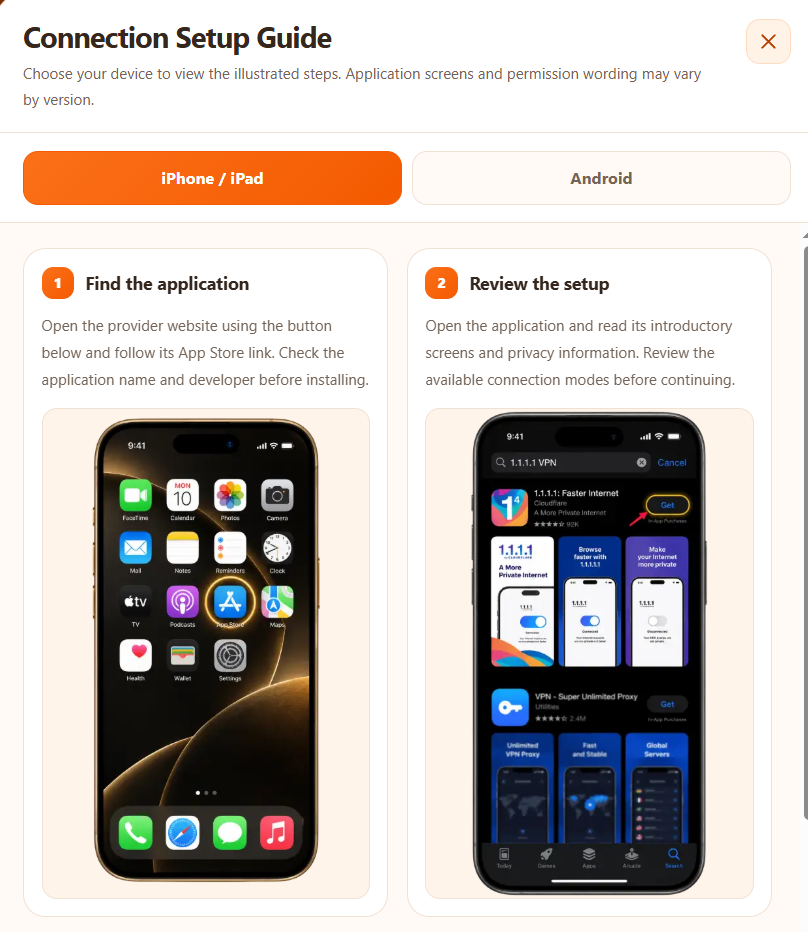
02 · Check the publisher
Find 1.1.1.1: Faster Internet from Cloudflare. Review the listing and install the app if it is available for your device.
03 · Review setup and permission
Read the app’s terms and setup screens. When asked, approve the VPN configuration only for the app you intentionally installed.
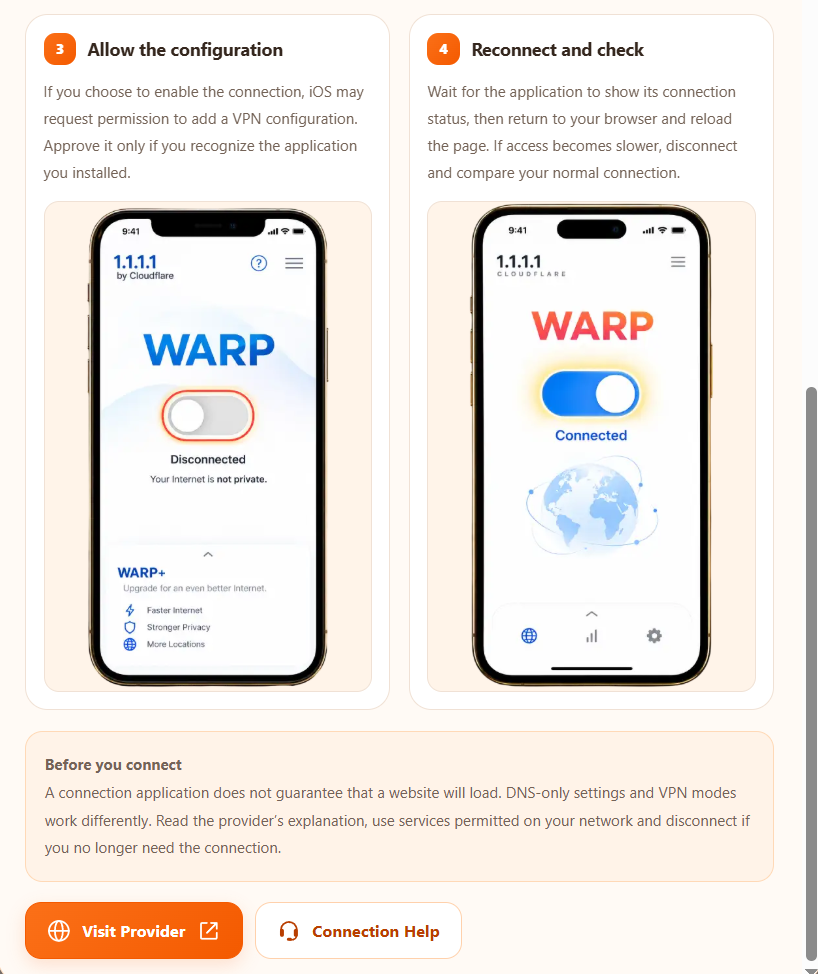
04 · Check the connection
Use the WARP toggle and wait for the app to report its status. If connection fails, consult the provider’s troubleshooting information. Disconnect when you no longer need it.
Android
01 · Open Google Play
Open Google Play on your device, or follow the store link on the provider’s website.
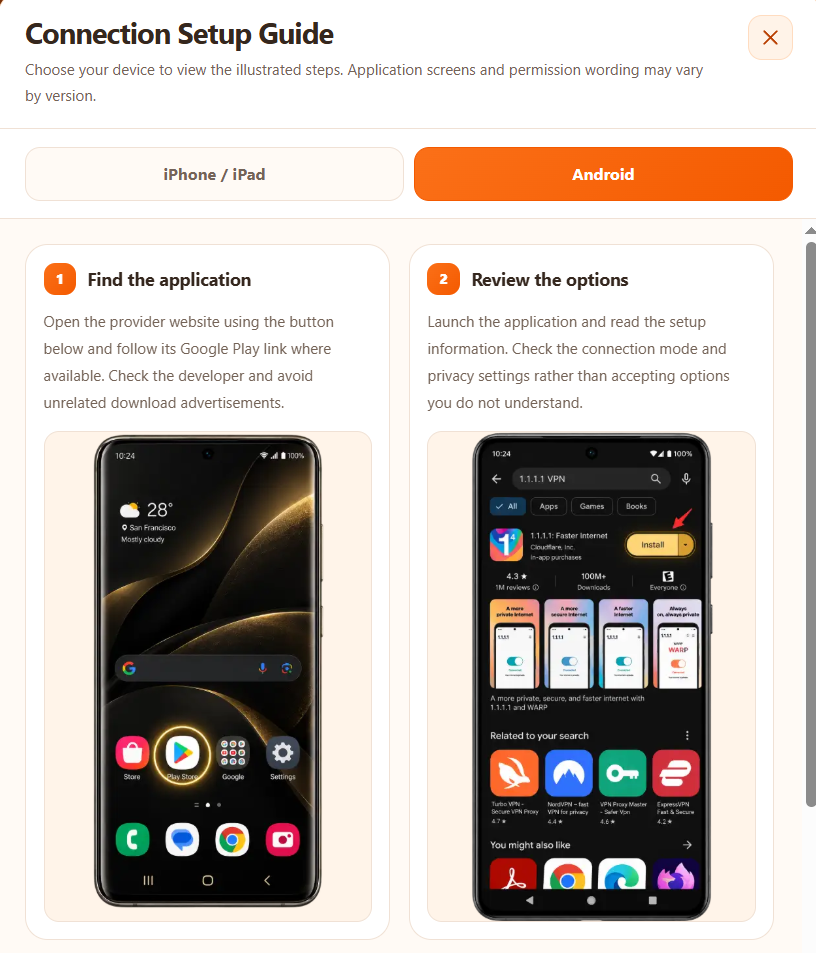
02 · Check the publisher
Find 1.1.1.1: Faster Internet from Cloudflare. Review the listing and install the app if it is available for your device.
03 · Review setup and permission
Read the app’s terms and setup screens. When asked, approve the VPN configuration only for the app you intentionally installed.
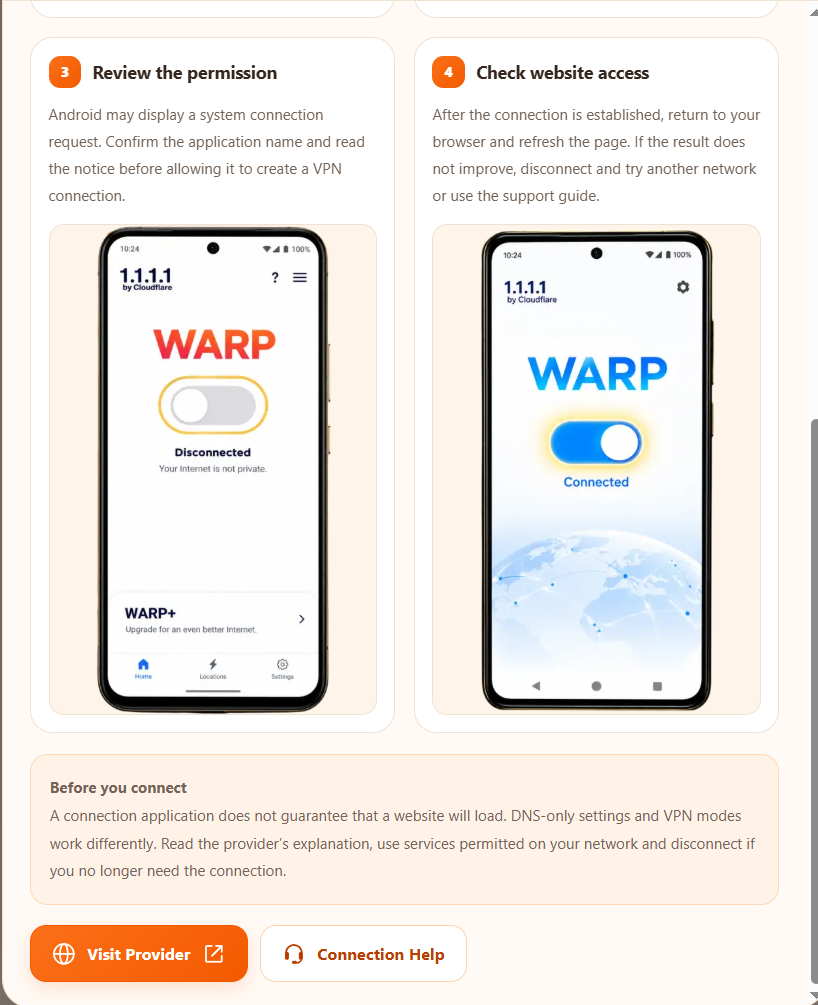
04 · Check the connection
Use the WARP toggle and wait for the app to report its status. If connection fails, consult the provider’s troubleshooting information. Disconnect when you no longer need it.
Provider references: iOS setup and Android setup. Documentation reviewed on 29 October 2026; no physical-device connection test is claimed.
Continue reading: FFPH8 FAQ · FFPH8 Contact